Photo workflow
Dither a Photo Online
Whether you want a newspaper halftone, a Classic Mac 1-bit portrait, or a grainy film look, you can dither a photo online in seconds — no Photoshop, no upload, no waiting. This guide covers the best settings for portraits, landscapes, and high-contrast photography.
Quick answer: To dither a photo online for halftone, retro, or 1-bit effects, use Diffused Editor — Floyd-Steinberg for smooth portraits, Atkinson for Mac aesthetics, Diffusion Dots for newspaper halftone. Private client-side processing, no upload.
Why dither a photo online?
Photo dithering online turns ordinary JPEGs and PNGs into stylized artwork with retro, print, and pixel aesthetics. Unlike filters that simply overlay grain, true dithering reduces your photo to a limited palette while preserving tonal depth through intelligent pixel patterns.
Using a browser tool to dither a photo online means you can work from anywhere without installing software. With Diffused Editor, your photo also stays private — processing happens on your device, not a remote server. That matters for client portraits, unpublished work, and personal images you would not want in a cloud pipeline.
Best photo dithering styles (and how to achieve them)
Halftone newspaper
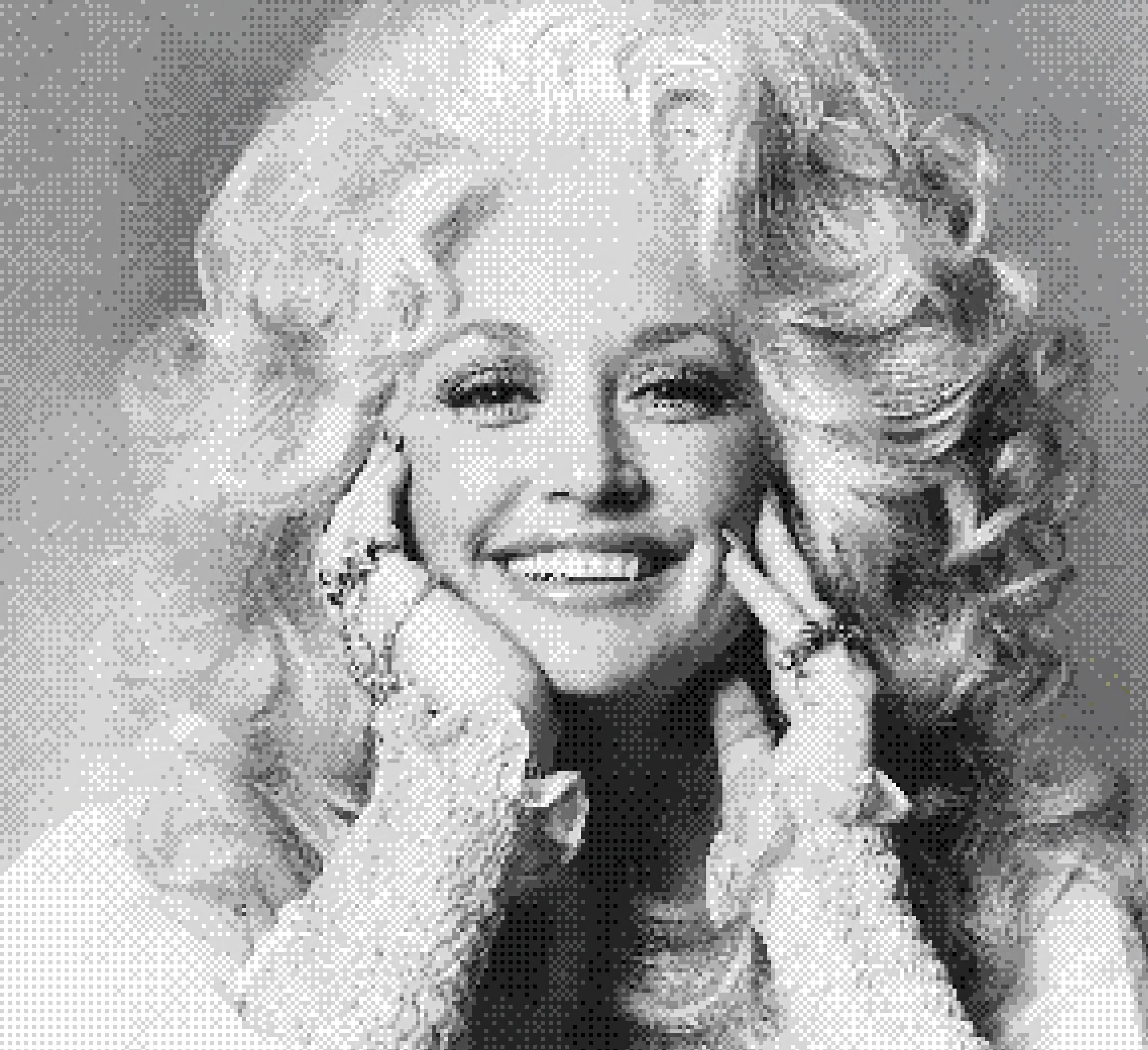
Algorithm: Diffusion Dots · Palette: Auto or black-and-white · Pattern size: 2–4× · Best for: editorial looks, zine covers, print prep. Creates variable-dot halftone like newsprint.
Classic Mac 1-bit
Algorithm: Atkinson · Palette: Mac Plus (B&W) · Colors: 2 · Threshold: ~128 · Best for: portraits with dramatic contrast, retro computing aesthetics, social avatars.
Smooth photographic dither
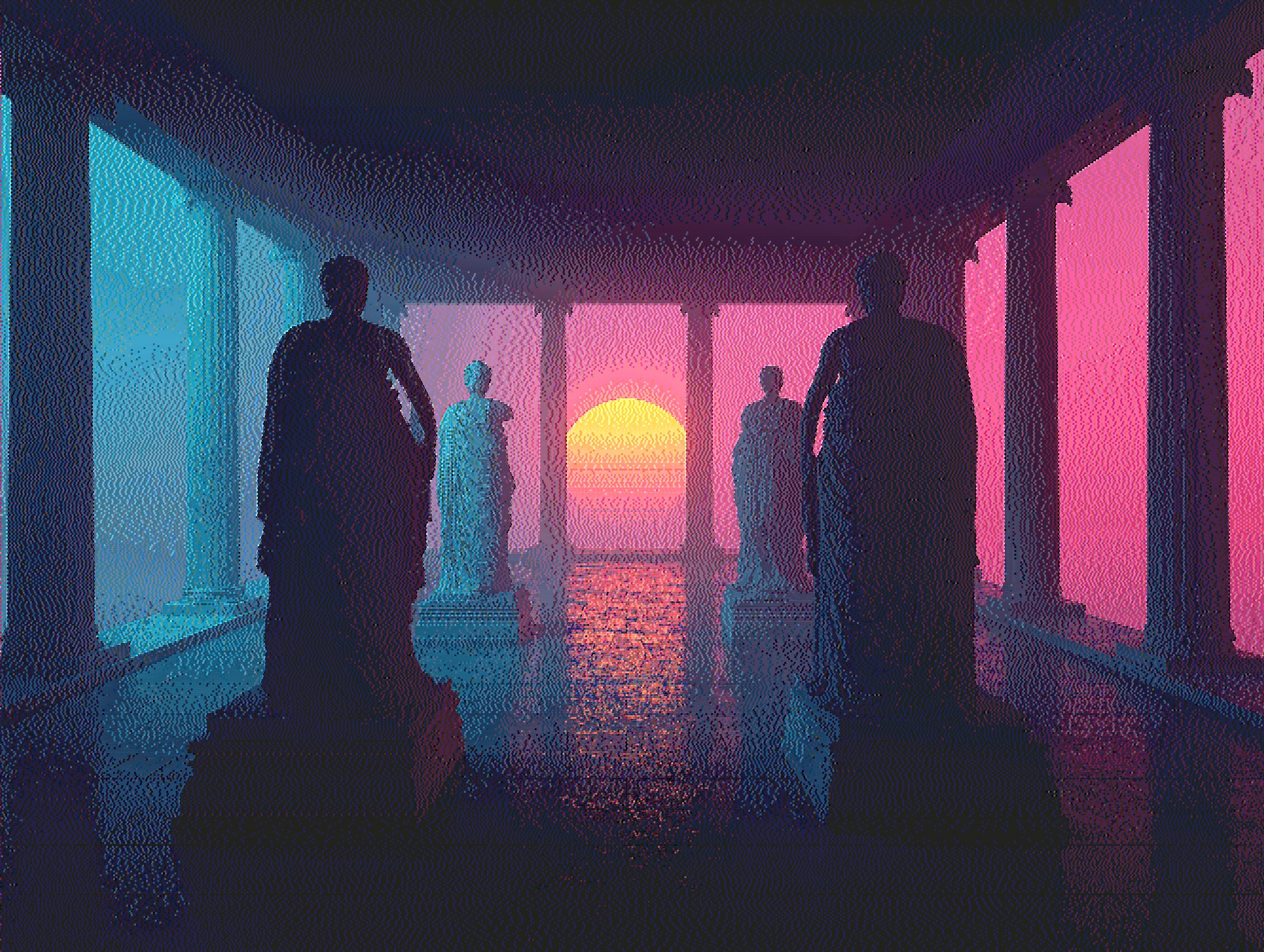
Algorithm: Floyd-Steinberg or Sierra · Palette: Auto-extracted · Colors: 16–32 · Intensity: 80–100% · Best for: landscapes, sunsets, and photos where smooth gradients matter.
Pop-art halftone grid
Algorithm: Ordered Bayer · Palette: CGA or NES · Pattern size: 1–2× · Best for: bold graphic posters, comic-book style, high-contrast street photography.
Film grain / blue noise
Algorithm: Blue Noise · Palette: Auto · Colors: 8–16 · Best for: moody portraits, analog film simulation, subtle texture without a visible grid.
Step-by-step: dither your photo online
- Upload your photo at diffusededitor.com. JPEG and PNG work best for photographs. You can also paste directly from your clipboard.
- Try Auto-Tune — one click analyses your photo and picks algorithm settings. This is the fastest way to dither a picture online when you are not sure where to start.
- Compare before and after — drag the A/B divider across the canvas or hold Space to see the original photo against the dithered version at any zoom level.
- Adjust threshold for portraits — the histogram in the Adjust tab shows where your photo's tones cluster. Snap to median for a balanced starting point, then nudge threshold to preserve facial detail.
- Export — download a free 50% JPEG for sharing, or upgrade to Pro for full-resolution PNG or WebP suitable for print.
Tips for better photo dithering results
- Start with more colors, then reduce — begin at 16–32 colors and lower the count until you find the sweet spot between style and readability.
- Use contrast before dithering — a modest contrast boost (+10 to +25) often produces punchier dither patterns on flat photos.
- Match palette to mood — Sepia for vintage warmth, Game Boy for nostalgic green tones, auto-extract for photos where color accuracy matters.
- Zoom in on faces — portrait dithering looks very different at screen scale vs. thumbnail size. Zoom to 200% to check eye and skin detail before exporting.
- Keep your original — dithering is a destructive creative step. Save the dithered export under a new filename.
Photo dithering for different subjects
Portraits and people
Faces need smooth midtone transitions. Error diffusion algorithms (Floyd-Steinberg, Sierra, Stucki) at 8–24 colors work best. Avoid very low color counts unless you want a deliberate harsh 1-bit look. Atkinson at 2 colors is the exception — it is iconic for stylized portrait work.
Landscapes and skies
Gradients in skies and water reveal dithering quality. Use Floyd-Steinberg or Jarvis-Judice-Ninke (Pro) with auto-extracted palettes. Increase intensity slightly above 100% if you want stronger pattern visibility.
High-contrast and black-and-white photos
Already monochrome photos are ideal for 1-bit and 2-color dithering. Try Atkinson with threshold adjustments, or Diffusion Dots for a printed-newspaper feel.
Free vs Pro for photo dithering online
Free photo dithering online includes 7 algorithms, live preview, zoom, compare mode, and 50% JPEG downloads — enough for social sharing and experimentation. Pro is worth it when you need:
- Full-resolution exports for print, portfolios, and client delivery
- Lossless PNG and WebP (JPEG compression can muddy fine dither dots)
- Advanced algorithms (Burkes, JJN, Sierra Lite, Two-Row Sierra) for finer tonal control
- Saved presets to apply the same photo dithering style across a series
Frequently asked questions
Will dithering reduce my photo quality?
Dithering intentionally reduces color information to create a stylistic effect. The perceived quality depends on algorithm choice and color count. Error diffusion at 16+ colors on a high-res photo can look excellent; 2-color Atkinson is meant to look stark and graphic.
Can I dither a photo on my phone?
Yes. Diffused Editor is mobile-friendly with touch pan and pinch-to-zoom. Upload a photo from your camera roll and dither it online in mobile Safari or Chrome.
What photo format works best?
PNG and high-quality JPEG produce the best dithering input. Avoid heavily compressed JPEGs — compression artifacts can interact poorly with dither patterns.
Dither your photo now — upload, preview, download in seconds.
Open Diffused EditorLearn the theory behind dithering in our image dithering guide.